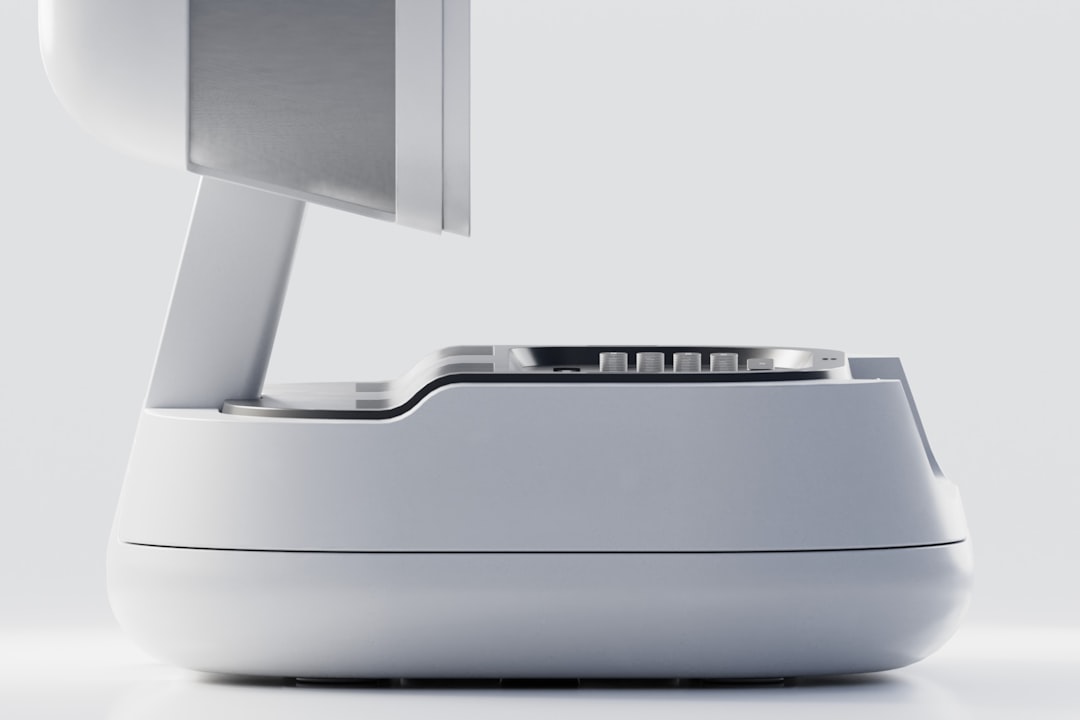
A smart pet feeder is only useful if it is set up correctly. The setup process for most modern WiFi feeders takes 10 to 25 minutes and involves physical assembly, WiFi pairing, schedule programming, and optional feature configuration. Done right, the cat or dog eats on time for years without issues. Done wrong, the owner spends hours troubleshooting and often returns the product. This article walks through the complete setup of a typical WiFi pet feeder. Written from Hefei, China, by Eviehome (Hefei Ecologie Vie Home Technology Co., Ltd.).
Before you start
Gather everything you need:
- The feeder unit
- The power adapter and cable
- 4 D-cell batteries (for models with dual power)
- Your smartphone with the correct app installed
- Your home WiFi password (2.4 GHz network)
- The kibble you will be dispensing
- A kitchen scale (optional but helpful for portion calibration)
Step 1: Unbox and inspect
Open the box and verify all contents:
- Main unit
- Food hopper and lid
- Bowl and drip tray
- Power adapter
- User manual
- Warranty card
- Any accessories (cleaning brush, silica gel packs, etc.)
Inspect for shipping damage. If anything is broken, contact the seller before proceeding.
Step 2: Physical assembly
- Place the feeder on a flat, stable surface away from direct sunlight, heat, or moisture.
- Attach the food hopper to the main unit (most units snap into place).
- Attach the bowl to the feeder base.
- Connect the power adapter to the unit and plug into a wall outlet.
- If the unit supports battery backup, install 4 D-cell batteries in the battery compartment at the base.
- Verify the unit powers on (LED indicator or display).
Step 3: Install the mobile app
Most smart pet feeders use either a brand-specific app or Tuya Smart. Download from the App Store (iOS) or Google Play (Android).
Common apps:
- Tuya Smart or Smart Life: the most common white-label platform
- Petkit: for Petkit-branded feeders
- PETLIBRO: for PETLIBRO feeders
- PetSafe Connect: for PetSafe Smart Feed
- WOpet: for WOpet feeders
- Brand-specific custom apps: various
Create an account using your email or phone number. Verify the email if required.
Step 4: Pair the feeder to WiFi
WiFi pairing is the most common point of failure. Follow carefully:
- In the app, tap “Add Device” or the plus icon.
- Select the product category (often “Pet Care” or “Small Home Appliance”).
- Select your specific feeder model.
- Put the feeder into pairing mode (usually by holding a button for 3 to 5 seconds until an LED flashes rapidly).
- Enter your WiFi network credentials (2.4 GHz network only, not 5 GHz).
- Wait for the app to detect the device (30 to 90 seconds).
- Confirm successful pairing.
Common WiFi pairing problems
- Connected to 5 GHz: switch your phone temporarily to the 2.4 GHz network.
- WiFi password incorrect: double-check for typos.
- Feeder too far from router: move closer to the router during initial pairing.
- Router firewall blocking: some router security settings block IoT devices. Temporarily disable firewall or enable IoT-friendly mode.
- Captive portal WiFi: hotel and guest networks often do not work. Use a home network.
Step 5: Configure time zone and clock
Set the correct time zone in the app. The feeder uses this to schedule meals. Verify the displayed time matches your local time.
Step 6: Add the pet profile
Most apps let you create a pet profile with:
- Pet name
- Species (cat or dog)
- Breed
- Age
- Weight
- Activity level
- Photo (for fun)
Some apps use this to calculate recommended daily calories.
Step 7: Fill the hopper with food
- Pour the cat or dog kibble into the hopper.
- Fill to the indicated max level. Do not overfill.
- Close the hopper lid securely.
- Verify the lid latches (prevents the pet from opening it).
Use dry kibble only. Wet food, semi-moist food, and oily treats will jam the auger.
Step 8: Calibrate portion size (optional but recommended)
Most feeders have a calibration feature for the specific kibble you use:
- In the app, open the calibration tool.
- Place a bowl on a kitchen scale.
- Dispense a test portion (usually 10 or 20 grams).
- Weigh the actual amount dispensed.
- Enter the actual weight in the app.
- The app adjusts the rotation count per gram for your kibble.
Skipping calibration can result in 10 to 20 percent portion errors.
Step 9: Program the feeding schedule
- Tap “Schedule” or “Feeding Plan” in the app.
- Add each meal time (e.g., 7:00 AM, 12:00 PM, 6:00 PM).
- Set the portion size for each meal.
- Select repeat days (daily, weekdays, weekends, custom).
- Save the schedule.
Test the schedule by triggering a manual dispense. Verify the portion is correct and the cat or dog has access to the food.
Step 10: Configure notifications
- Meal dispensed notification
- Low food level alert
- Feeder offline alert
- Firmware update available
Enable all of these for peace of mind.
Step 11: Test with the pet
Watch the first few meals to confirm:
- The pet approaches the feeder
- The pet eats comfortably from the bowl
- The kibble dispenses smoothly without jamming
- The pet does not try to chew or escalate the feeder
If the cat or dog is hesitant, place a few treats near the feeder to build positive association.
Step 12: Firmware update
Check for firmware updates in the app within the first week. Firmware fixes bugs and adds features over time. Always run the latest version.
Setup checklist summary
- Unbox and inspect
- Physical assembly
- Install app
- Pair to WiFi (2.4 GHz only)
- Set time zone
- Create pet profile
- Fill hopper with dry kibble
- Calibrate portion
- Program schedule
- Enable notifications
- Test with pet
- Update firmware
Frequently asked questions
How long does setup take?
10 to 25 minutes for an experienced user. 30 to 60 minutes for first-time smart pet product owners. The WiFi pairing is the step most likely to cause delays.
What if the feeder does not pair to WiFi?
Try these steps: move closer to the router, switch to 2.4 GHz, restart the feeder, restart the router, re-install the app. If still failing, contact customer support.
Does Eviehome provide setup guides in multiple languages?
Yes. Eviehome feeders include setup guides in English, German, French, Spanish, Italian and simplified Chinese. Additional languages available on request for OEM customers.
About Eviehome
Eviehome smart pet feeders are designed for quick setup, with intuitive apps and multilingual documentation. Based in Hefei, China since 2014. See our smart pet feeders wholesale buyers guide.
Contact Ryan Lau at ryanlau@eviehometech.com, on WhatsApp at +86 199 5653 0913, or use the contact form.